
MayaScale utilizes instances with local NVMe devices and provides robust NVMe over Fabrics platform to clients that support NVMe/TCP. Deploy MayaScale in 2-node HA configuration if the NVMe devices are temporary storage devices to safe guard against data loss in the event of interuption.
| Table of Contents |
|---|
Storage Optimized Instances
Choose storage optimized virtual machine (VM) sizes Lsv3, Lasv3, and Lsv2-series that feature high-throughput, low latency, and directly mapped local NVMe storage. These VM series come in sizes from 8 to 80 vCPU. There are 8 GiB of memory per vCPU, and one 1.92TB NVMe SSD device per 8 vCPUs, with up to 19.2TB (10x1.92TB) available on the largest VM sizes. Since these local NVMe disks are ephemeral, data will be lost on these disks if you stop/deallocate your VM but MayaScale in 2-node HA solves this problem.
Service Principal Account
Before configuring MayaScale High Availability create a Service Principal account with sufficient permissions to manipulate disk attachments for proper sharing and fencing, and also storage read-write access to object storage. It also needs sufficient permission to float the virtual IP across multiple instances. By having separate service account for all MayaScale deployments you can enforce proper security measures as the assigned roles are limited to this project instances only.
...
| Info |
|---|
The above command requires subscription-id and resource group name where Mayascale will be deployed. To find the subscription ID az account show --query id -o tsv de1374d24-1027-440d-97e3-574dcc83e7d3f/ Please make a note of that password or also known as client secret value for Application Registered with Azure Active Directory. This will value will not be displayed again in the Azure portal. |
Service Prinicipal Login on MayaScale instances
Here is the sequence of steps involved in deploying High-Availability (HA) MayaScale on Azure cloud platform. The next steps assume you’ve already deployed at two MayaScale instances from Azure marketplace, with desired Availability Set.
...
| Code Block | ||||
|---|---|---|---|---|
| ||||
{
"cloudName": "AzureCloud",
"homeTenantId": "3d2547b6-c040-40bd-7911-edcd62a8b111",
"id": "56813587-f424-4db0-af19-516c71f5800c",
"isDefault": true,
"managedByTenants": [],
"name": "Pay-as-you-go",
"state": "Enabled",
"tenantId": "3d2547b6-c040-40bd-7911-edcd62a8b111",
"user": {
  "name": "daf98b5b-343a-4119-a08f-4ea837048e41",
  "type": "servicePrincipal"
 }
}
|
Change default GUI password
Change the MayaScale Administration GUI default password to something random by running
...
| No Format |
|---|
# /opt/mayastor/web/stop # /opt/mayastor/web/start |
Connect to Mayascale Web Console
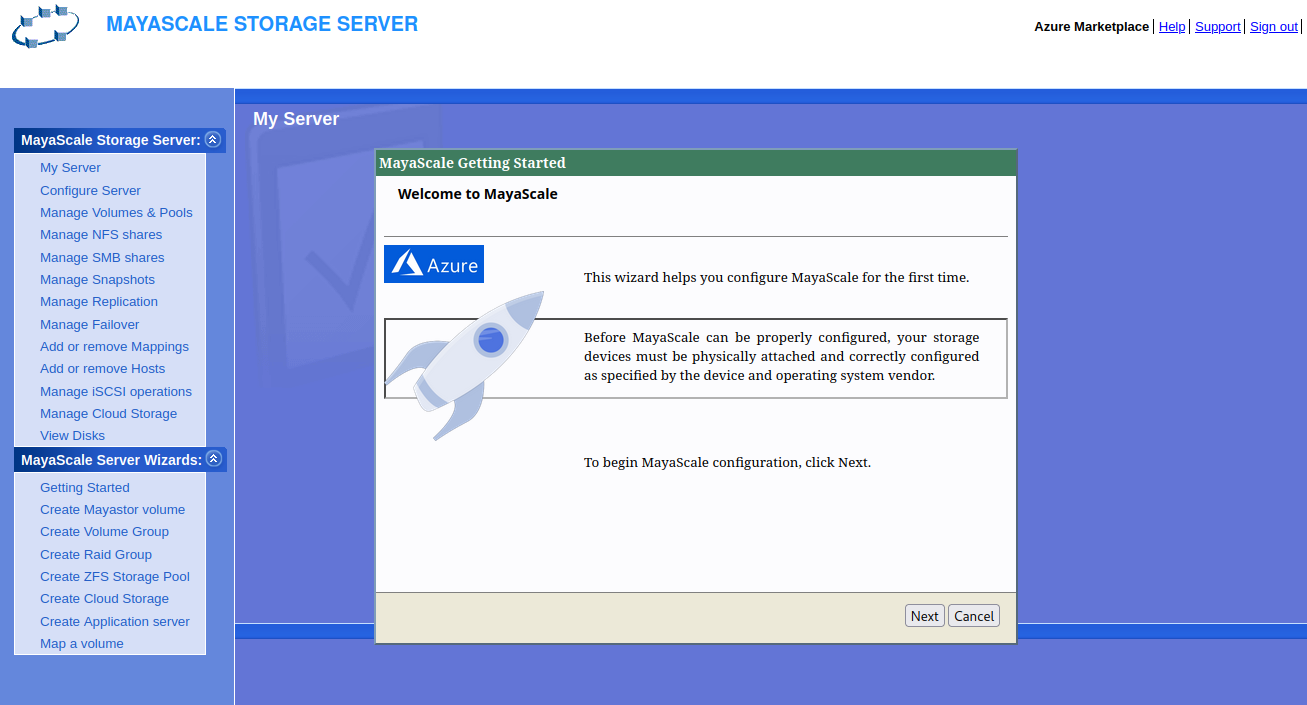
Now you can proceed with High-Availability setup using the Getting Started wizard from Administration Web console available on http://<mayascale1-ip>:2020
| Tip |
|---|
To avoid public network exposure of port 2020 it is recommended to use ssh tunneling with port forwarding as follows ssh -i ~/.ssh/mayascale.pem azureuser@<mayascale1-public-ip> -L 2020:localhost:2020 |
Next proceed to Configure MayaScale