1. Connect to newly launched VM instance
- Using RDP client connect to VM instance with the default account name and initial password configured by the cloud provider.
- Change the default password to your own password.
- Optionally create additional users if needed.
2. Launch Administration console
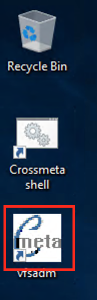
Launch vfsadm Administration Console from the shortcut link in Desktop and Run as Administrator
Expand the Cloud Disks in the tree view pane to reveal the following management options
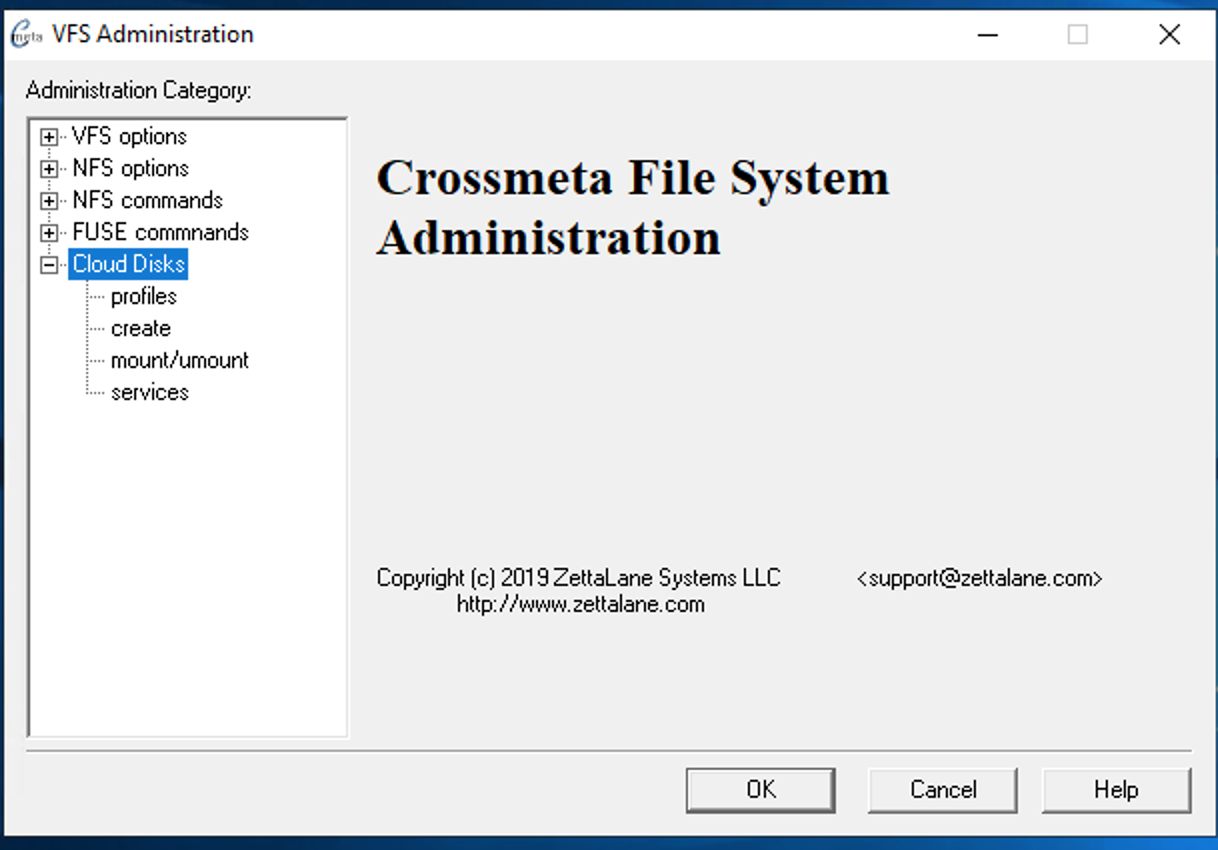
3. Create Cloud Profile
Use profiles → New to create a cloud profile that provides relevant information for accessing the cloud storage from application. To start with the configuration you would need access ID and secret generated by your cloud provider from their console settings. It is also possible to skip providing this information, if the compute engine was already authorized to perform S3 object access operations through IAM settings.
For AWS EC2 instance created with IAM role that authorizes S3 operations it may not be required to configure the accessId and accessKey within the software. Instead use the option --accessEC2IAM=ROLE option with objbaker. This will acquire S3 credentials from EC2 machine via IAM role.
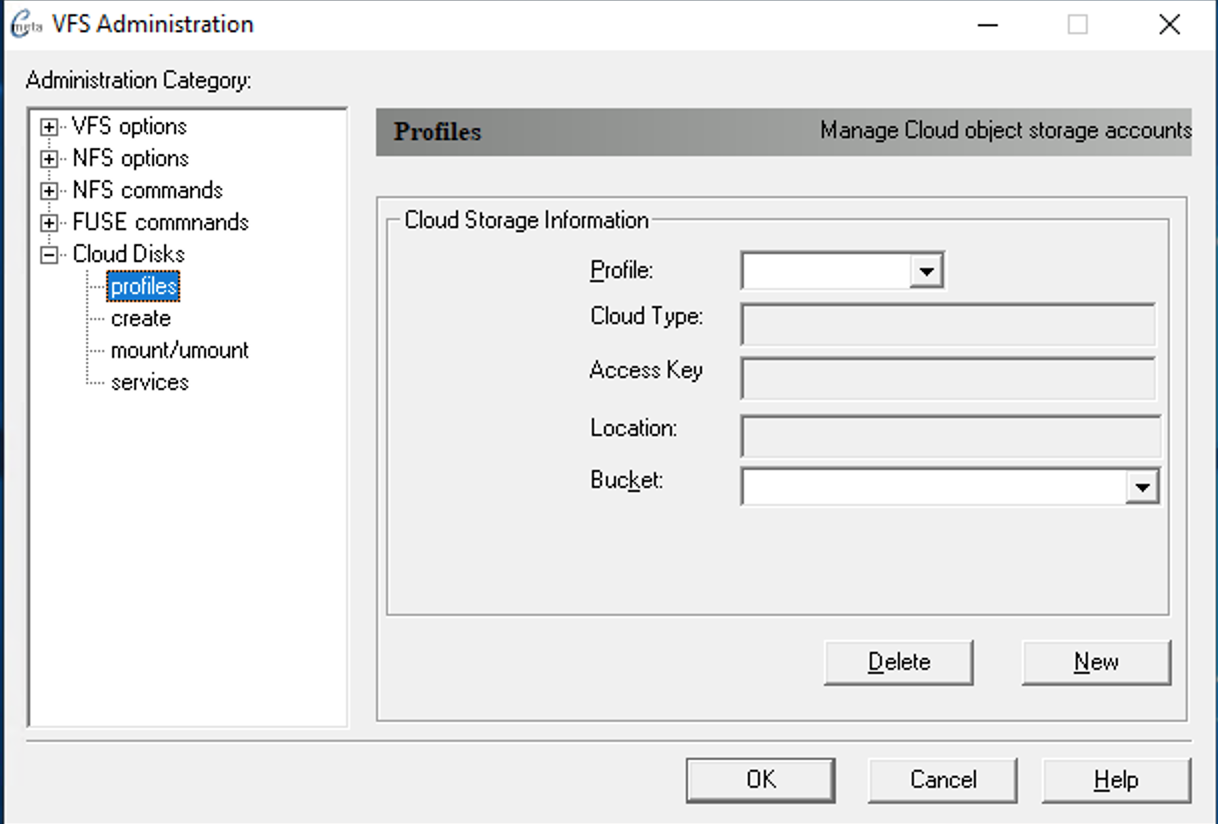
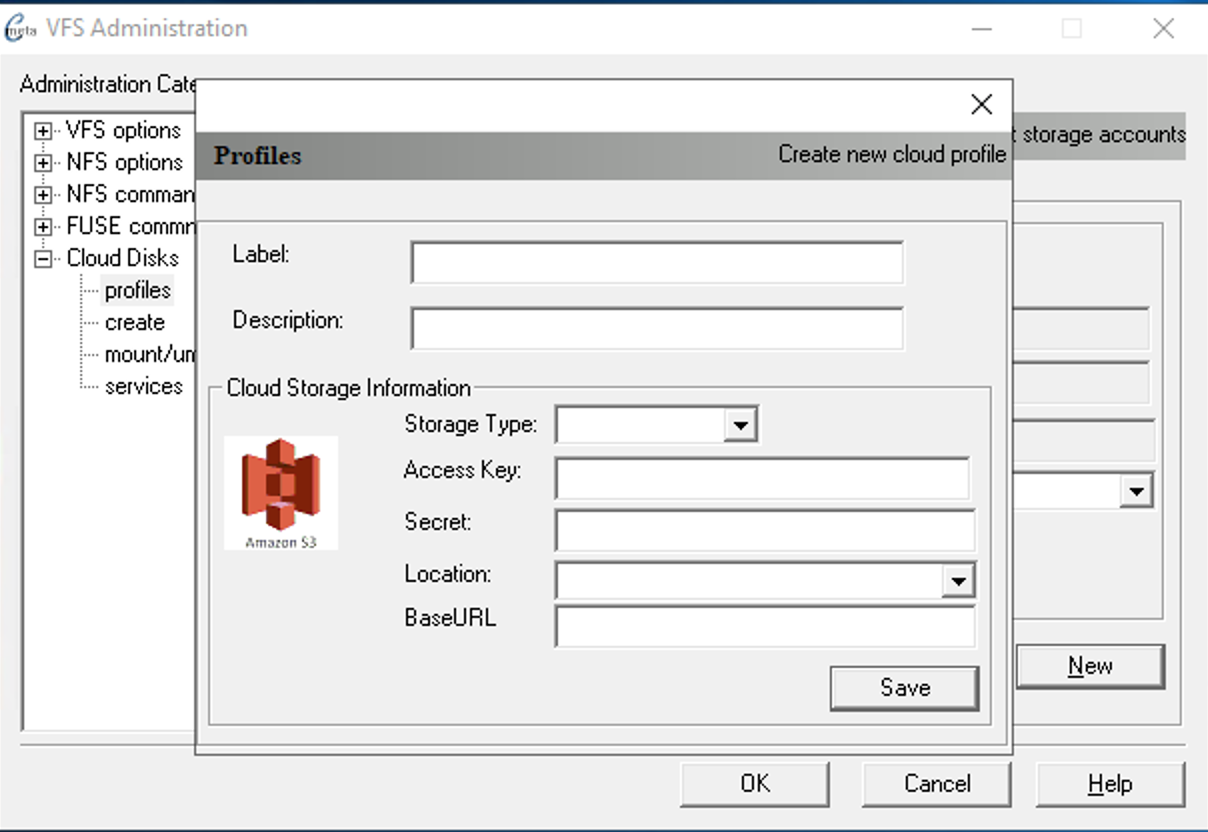
The following dialog shows how to configure cloud profile for Wasabi Technologies which comes under Other S3 generic category. In this configuration BaseURL is required to match their service URLs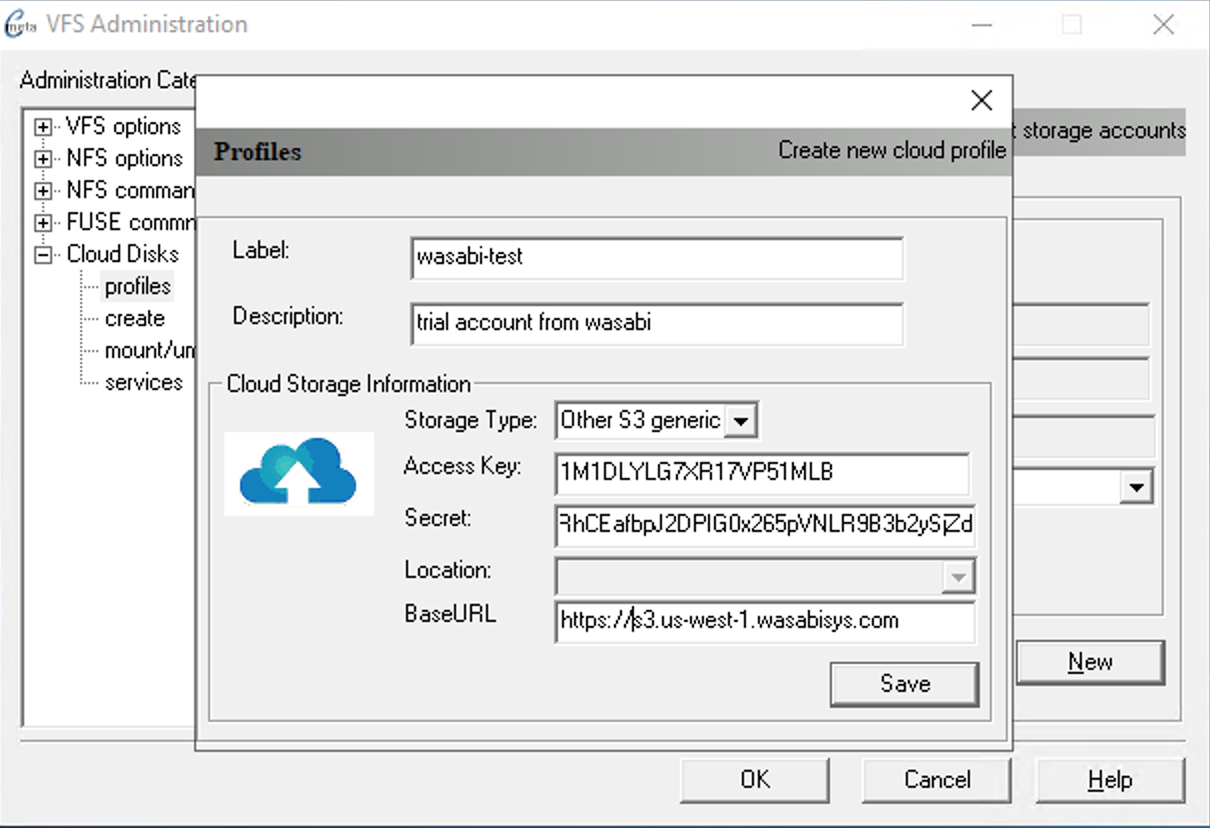
Once configured it will provide a list of bucket/container names that is currently present.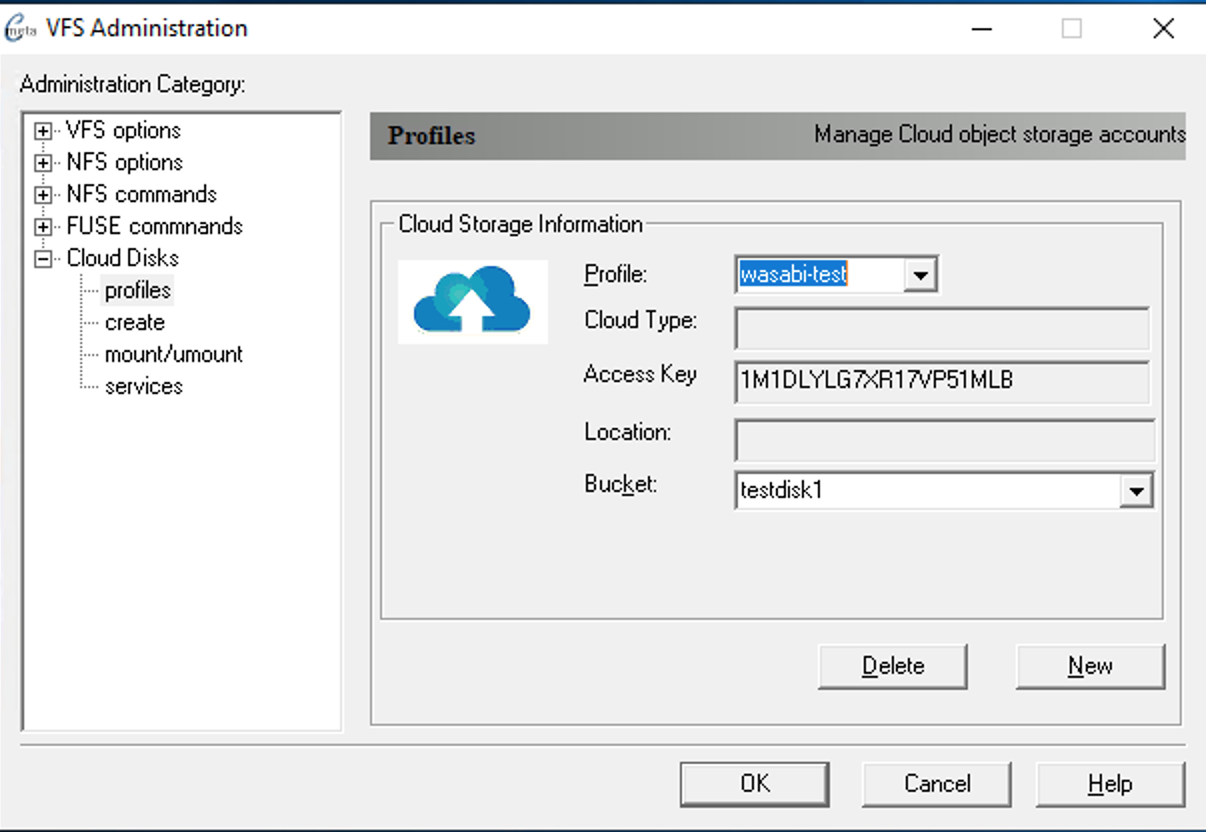
On this page: |
3. Configure your first object storage disk
Select the cloud profile to use to create object storage disk. You can select an existing Bucket from the list or enter one manually which will create a new bucket for you. Logical size of VHDX up to 64TB allowed by Windows
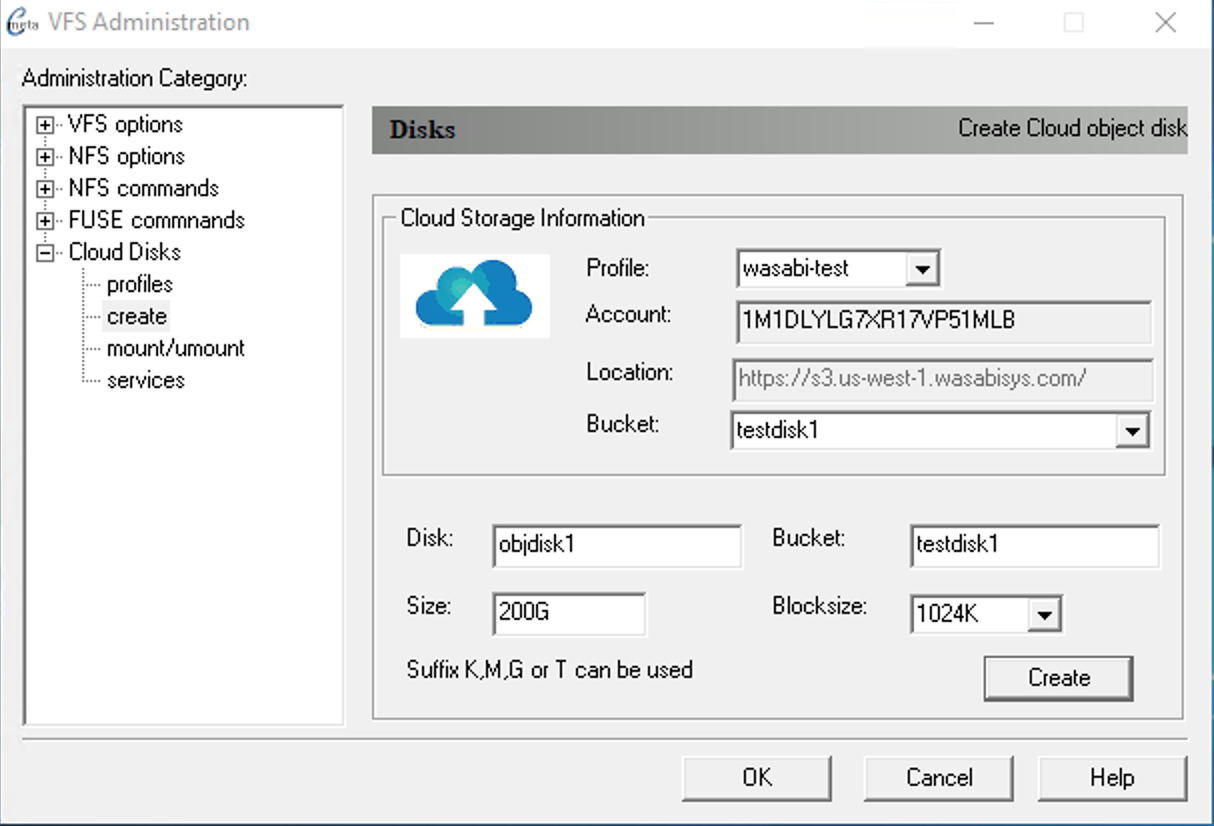
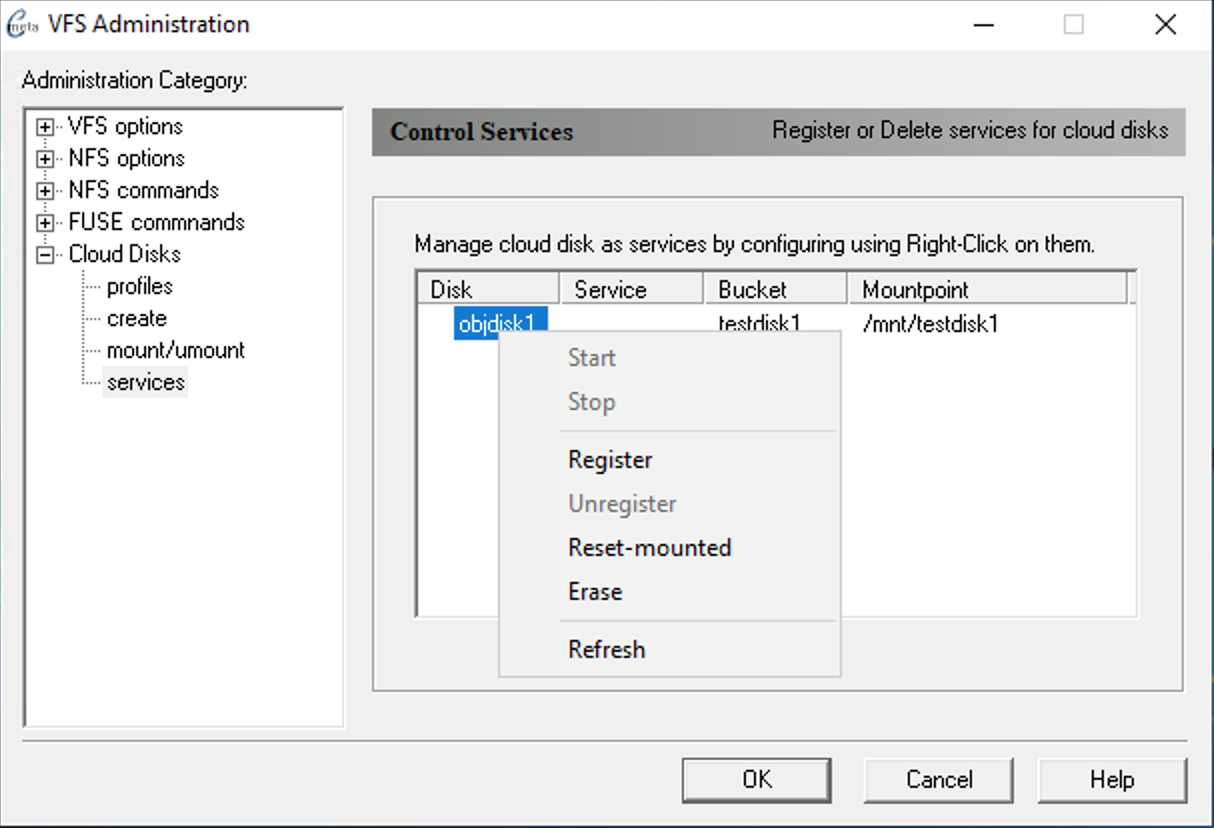
Once cloud disk was setup you can Register it as service program from the right-click popup menu.
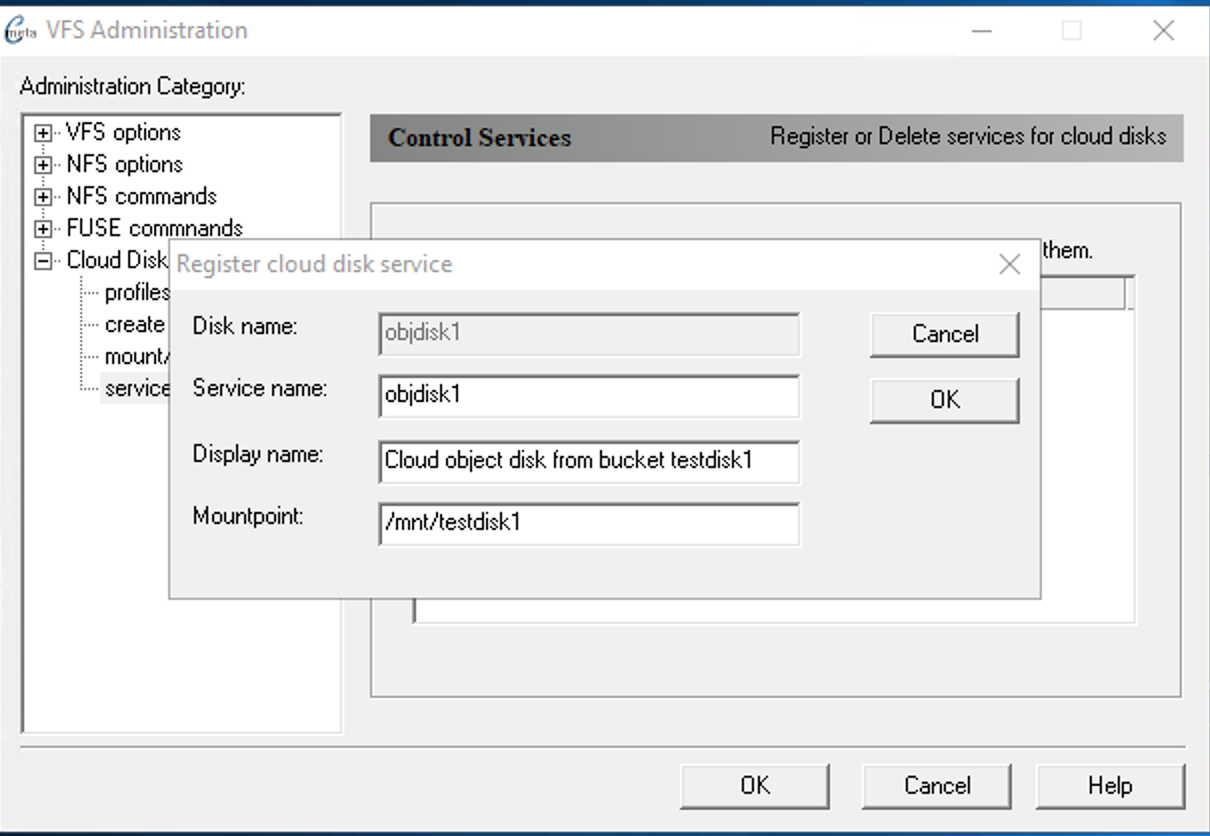
Configure object storage as VHDX
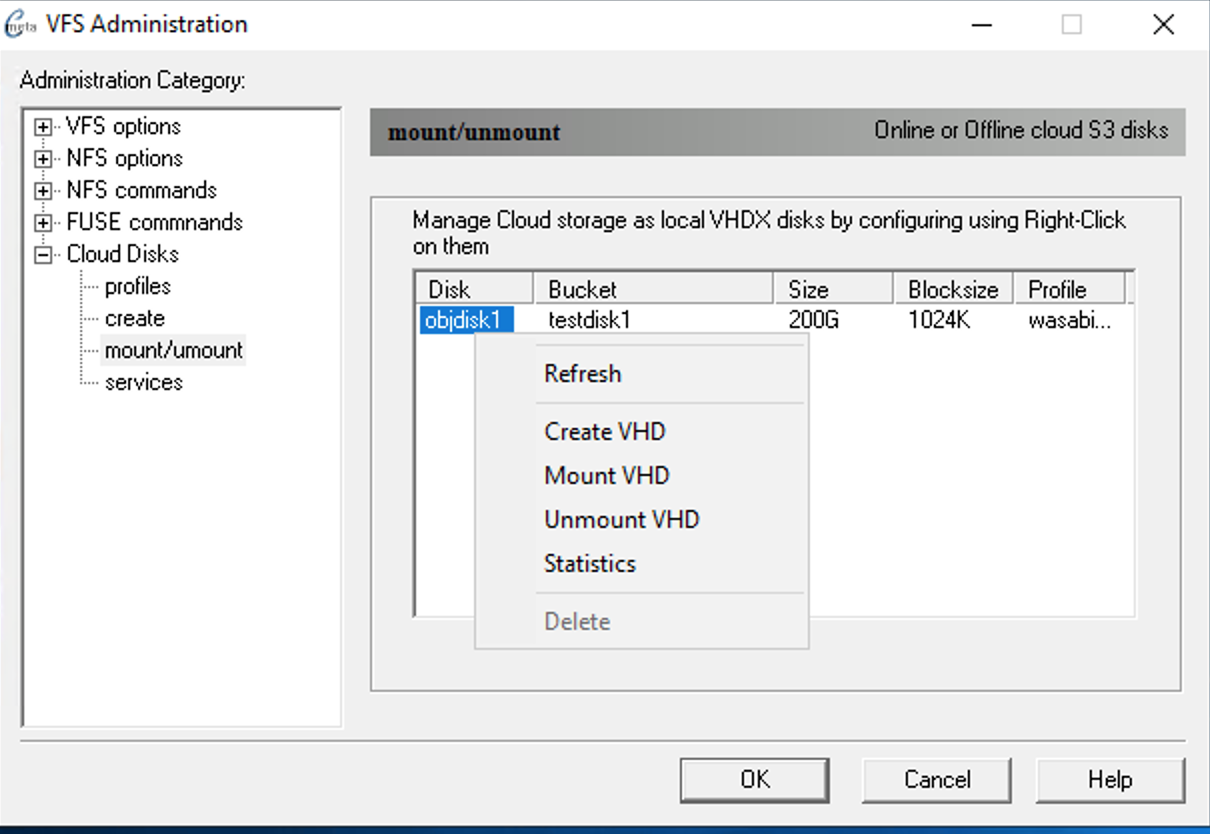
For Windows to make use of object storage bucket we have to initialize the object storage as VHDX image. VHDX is preferred over VHD because of inherent journal feature to protect against unsafe shutdown and also it can support up to 64TB for a single image.
Mount object storage bucket
For Windows to make use of object storage bucket we have to intialize the object storage as VHDX image. VHDX is preferred over VHD because of inherent journal feature to protect against unsafe shutdown and also it can support up to 64TB for a single image. This step is performed in foreground interactively to make sure it is working before configuring it as service later. In the following example object storage bucket smbtest1 is being mounted. Please make note of the -f option for foreground. Also for filename we chose as extension .vhdx
After the above command finishes the object storage is accessible as V:\mnt\file.vhdx as one giant file with logical capacity as 10TB.C:\Program Files\qemu>dir v:\mnt Volume in drive V is vfsroot Volume Serial Number is 0122-B5C1 Directory of v:\mnt 05/22/2019 07:48 PM <DIR> . 05/22/2019 07:48 PM <DIR> .. 05/22/2019 07:48 PM10,995,116,277,760 file.vhdx 05/22/2019 07:48 PM 1,422 stats 2 File(s) 10,995,116,279,182 bytes 2 Dir(s) 5,242,880 bytes free
Activate VHDX file as virtual disk in Windows with Mount VHDX
- Launch diskmgmt.msc to initialize disk for the first time and assign a drive letter. You may create a file system within Disk Management GUI or from Command Prompt.
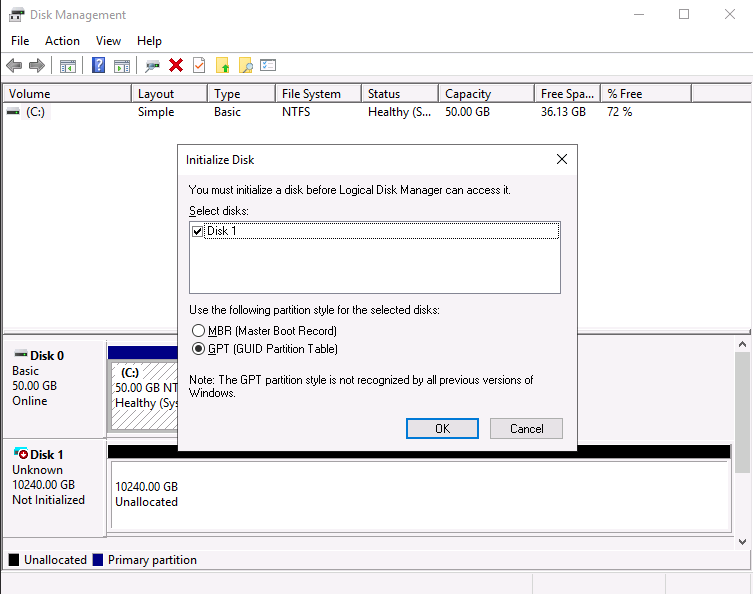
Create a file system NTFS or ReFS. Use the actual drive letter that was assigned from the above command and allocation size of 1MB is chosen to match with the block size used while configuring cloud disk.
c:\users\Administrator> format /fs:ntfs /A:1M /q F:
Windows 2019 supports allocation size of 1MB for NTFS file systems while earlier version limited to 64KB only. This means NTFS created with 1MB allocation size may not be recognized by older Windows.
Detach the virtual disk
Stop the objbaker program to proceed configuration as service
From Desktop → Crossmeta command shell running as administrator
The above command would stop the objbacker program that is running inside another Command Prompt Window.
Related pages